
Describing is a common objective in academics. Young children are asked to describe objects or experiences in preschool, and older children might be asked to describe procedures, characters, a story, etc. In addition to verbally describing, children have to follow directions and attach increasingly more meaning to information received in order to formulate an expressive response. Describing facilitates a deeper understanding of word meanings and facilitates retrieval.
Children with language difficulties often have difficulty formulating correct descriptions or following longer instructions. This becomes more difficult when the external prompts from the teacher or clinician to guide them, fall away
Virtual Speech Center released Describe with Art earlier this year and Smarty Ears recently released Describe it To Me.
Describe With Art

Developer: Virtual Speech Center Price: $9.99
The settings menu has the following options:
- User Alternate Count – For use with more than one player
- Enable Audio – Turns on/off audio instructions
- Show Instructions – Turns on/off written instructions
- Automatic Paging – When turned on, the app will move to the next item after a correct response.
- Random Paging – Changes the order of presentation of items.
- Enable Reward – Turn on/off Painting reward
- Award Counter – The number of correct responses needed for reward.
The app has both an Expressive and Receptive Activities.
Describe it
Expressive Activity:
There are seven categories for describing:
- People
- Animals
- Objects
- Places
- Food
- Clothes
- Transportation
The student is shown a picture and asked to describe it. The response can be recorded by tapping the record button. If the student has difficulty generating a response independently, then prompts are given by tapping on the numbers below the picture.
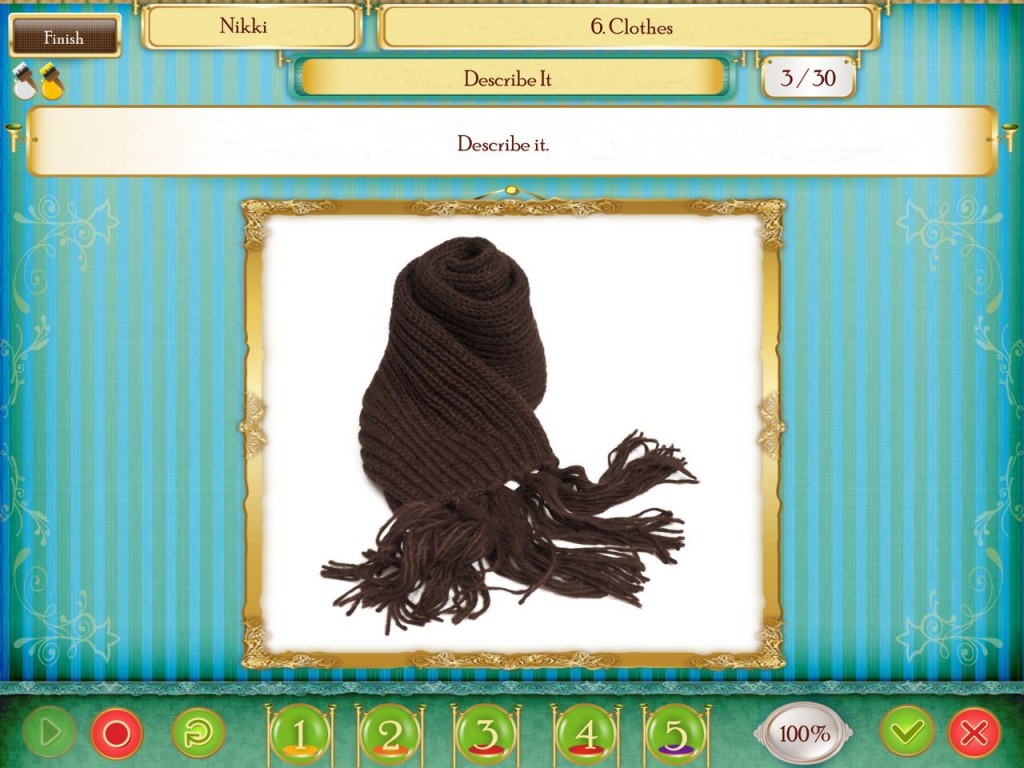
For example, the question prompts for the scarf (clothing)are:
1.What is it?
2.When do you wear it?
3. What body part does it cover?
4. Who can wear it?
5. Describe the size, color and fabric
Follow Directions
Receptive Activity:
For this activity, you can choose from five sets of questions. Each set of questions has 20 items, although they sets do not seemed to be categorized in any way.
The student is shown 4 images and asked to select one based on description. The option to have the directions displayed in written form or hidden can be changed in the settings.
An example of the description
Show me the round plastic object that we find in the bathroom that is used for shaving.
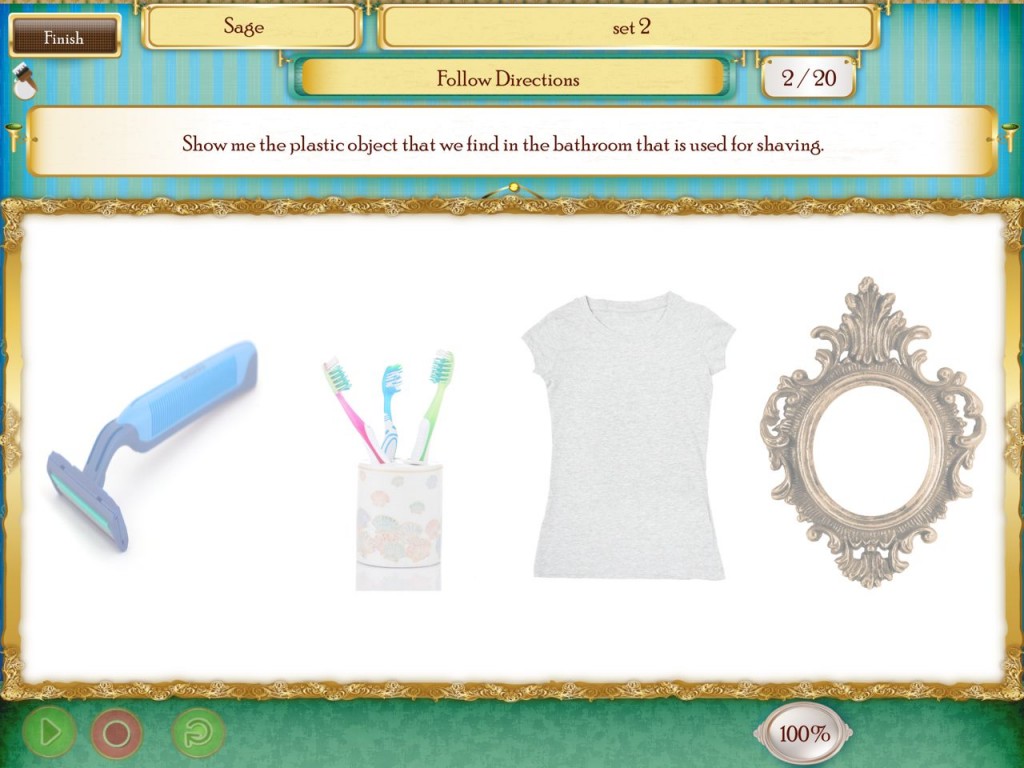
The option to record is also available on the Receptive Level and this allows the clinician to address expression and sentence construction tasks at the same time
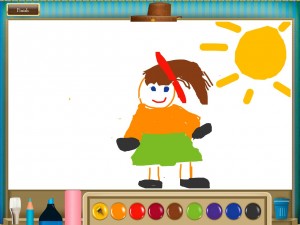
Students are rewarded with a visit to the art studio where they get to create their own image.
I Like:
- The ability to obtain cues when necessary, and gradually reduce and then eliminate cues as the student’s skills improve.
- The record feature, which allows the child to compare his response to the cue questions and self – evaluate.
- The Follow Directions task really encourages the student to listen carefully and discourages impulsivity. The image is faded and the student CANNOT respond to the direction until the entire direction is stated. The foils for each instruction require that the child attend to ALL the information before responding.
- In the settings menu, the written instructions can be enabled/disabled. This allows you to modify the task to a reading comprehension task or a pure listening comprehension task.
- Expressive language skills can be targeted by asking the child to repeat instruction. The record feature is available on the Follow Directions Task.
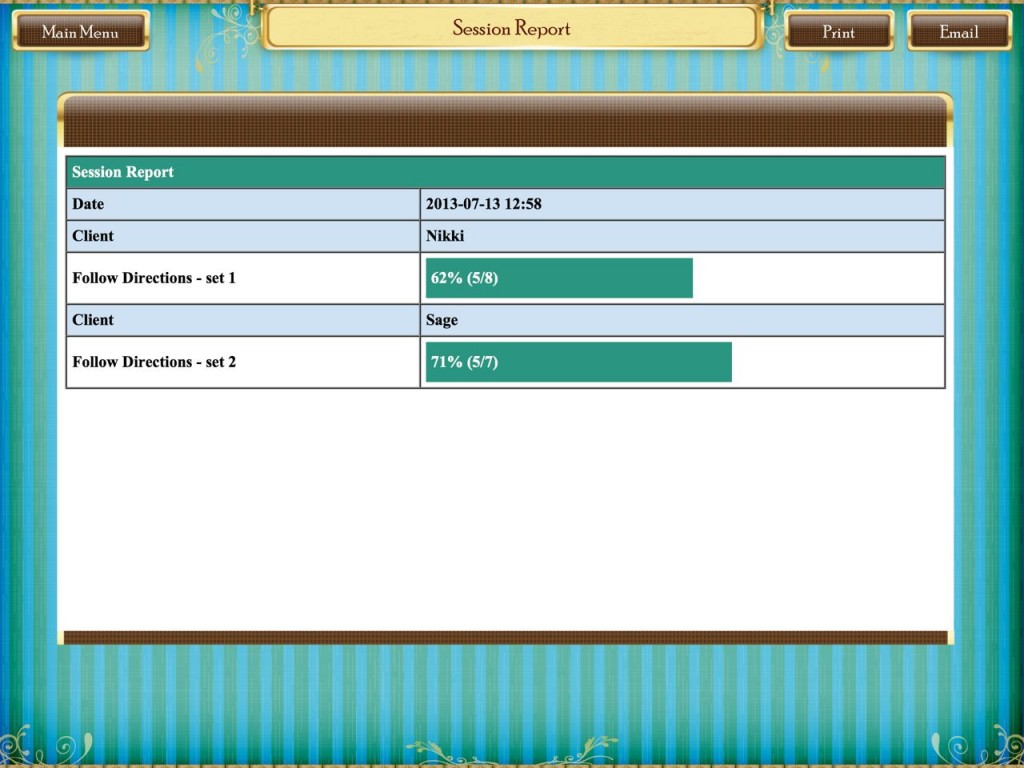
- Data tracking included in the app with the ability to print/e-mail the progress.
I would Like:
- The ability to switch between tasks or categories. There are 30 items in each Describe It category and the student has to complete ALL items before going onto a different task or describe items in a different category.
- The recording feature to be able to save the voice clips so that the entire description can be replayed for the student.
- Students often complained that they did not know what to draw or how to draw and it would be great if there were some line drawings that the student could color in and add their own details to. The color palette is limited and it was difficult to obtain clear lines using the tools provided.
Describe it to me

Developer: Smarty Ears Apps
Price: $9.99
The App is presented as a game show and the wheel selects the player to begin.
The Settings Menu has the following Options
Buzz or remove incorrect response
Visual and auditory Reinforcement for correct Responses
Display/Not display points
Customize Word list – you can choose which words you would like to use before the beginning of the game.
Receptive Level
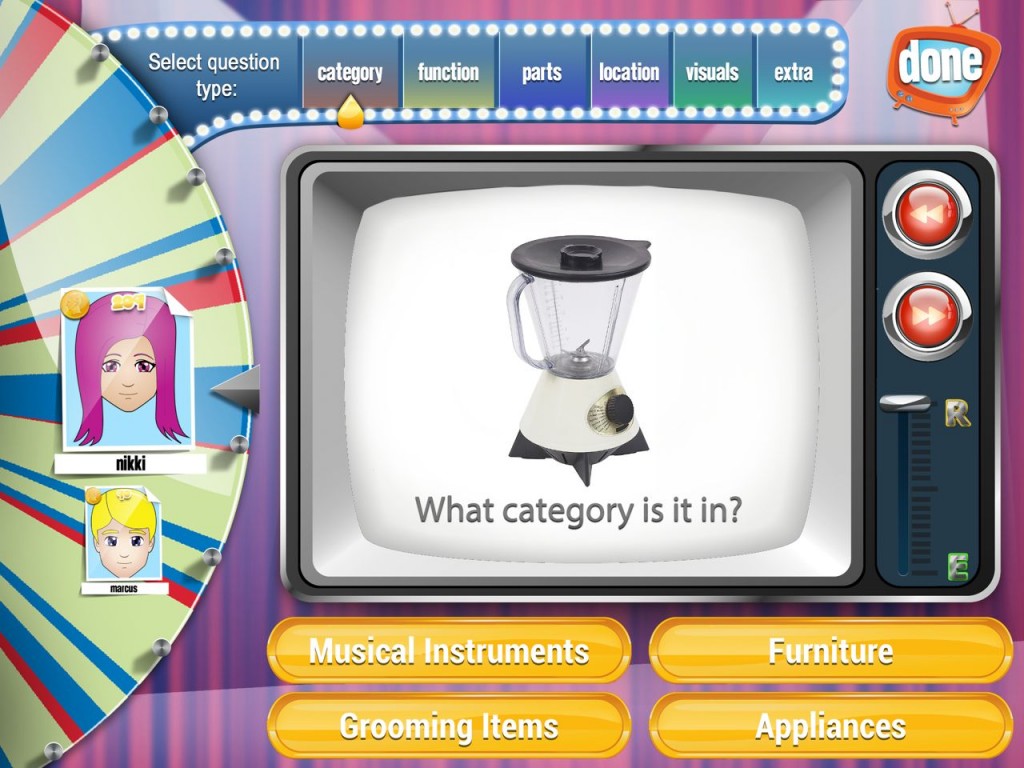
Each picture stimulus has six questions designed to teach a deeper level of understanding for everyday items:
CATEGORY: What category is it in?
FUNCTION: What does it do or what do we do with it?
PARTS: What parts does it have?
LOCATION: Where can we find it?
VISUALS: What can I see?
EXTRA: What else do I know?
The clinician chooses the type of questions asked. For example you can choose to only ask the name of the category for different pictures or you can go through the whole set of questions with the same picture. The student is awarded a trophy based on a TV theme (e.g. Best Home Improvement Show) when they obtain 10 consecutive correct answers.
Expressive
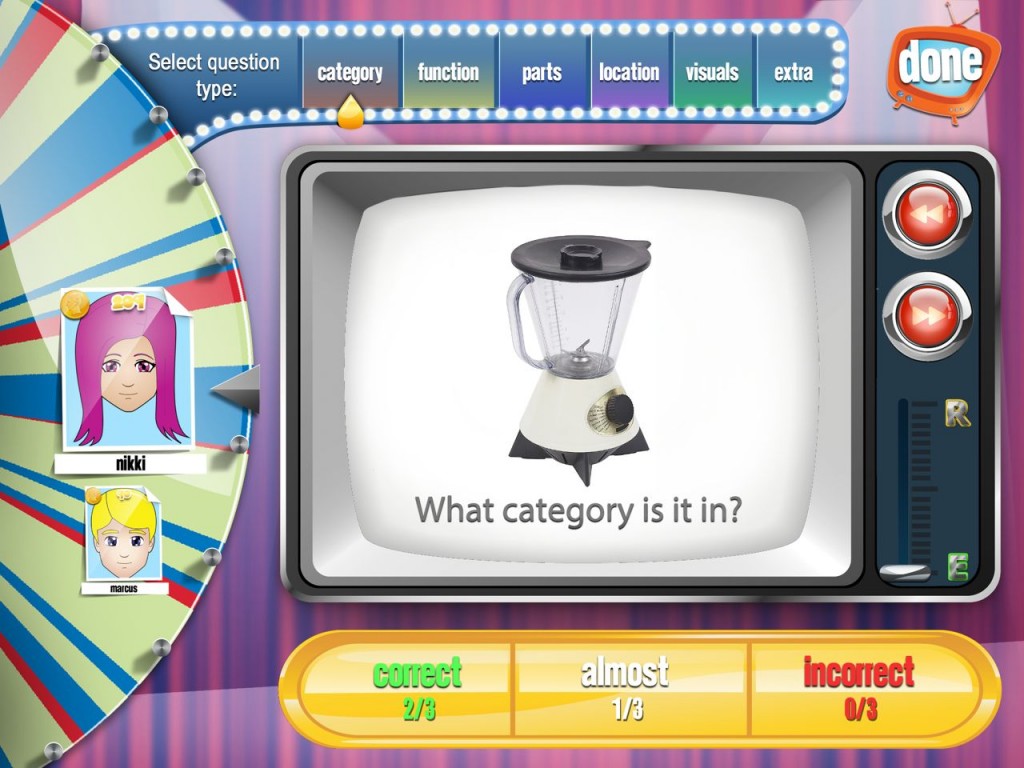
The same cues as the receptive task are used. The student’s response is evaluated as correct, almost or incorrect by the clinician.
If you want to work on a specific category or function, you can customize the word list at the beginning of the session.
Homework Sheets
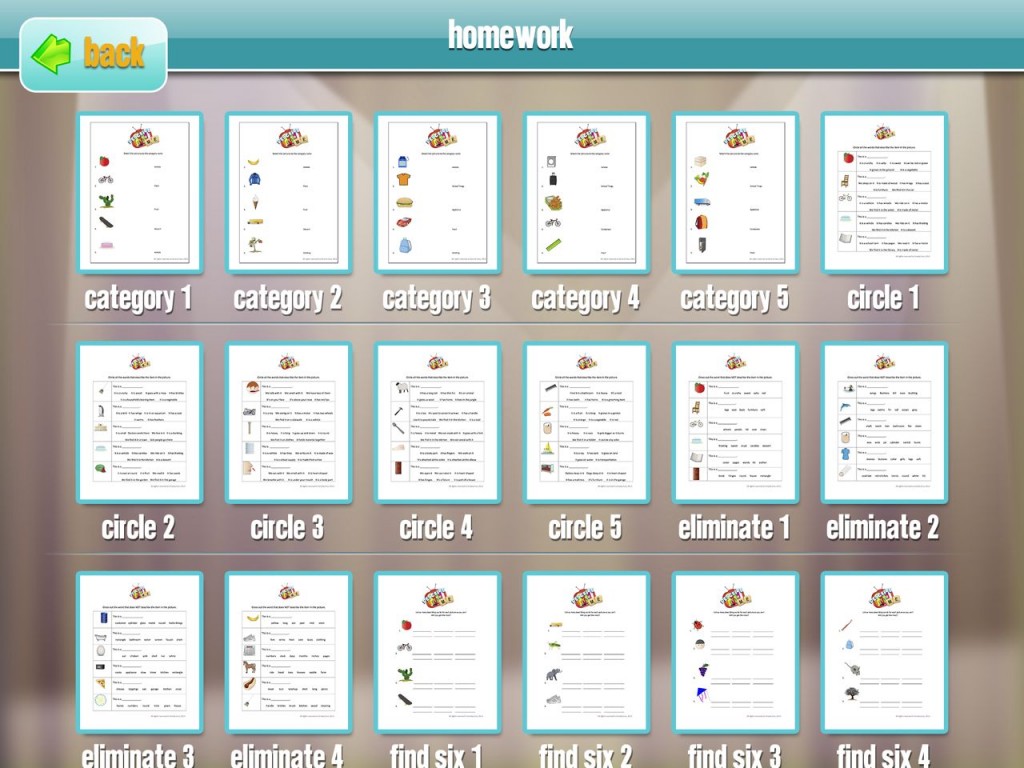
The app has 34 worksheets of various skill levels are included that reinforce the concepts addressed throughout the game. These include the following areas:
Category (matching)
Circle (multiple choice)
Eliminate (cross out from multiple choice)
Find Six (list six words in a category)
Function (matching)
Location (matching)
Part (matching)
What I Like:
- I really like the ability to switch between expressive and receptive tasks at any point in the app.
- You can move onto the next picture easily by touching the “forward button”
- Reports are specific and provide information about where the student is breaking down. E.g. Expressive – Identifying the function is difficult for this student. Student copes better when given visual information.
- I love the homework sheets! These are not only valuable for students they assist in highlighting skills for the parents to work on with their children.

What I would Like:
- I would really like a record feature so that students can compare their definition with that given by the app. It adds another dimension of comparing and contrasting skills.
- It would be great if touching the choice options created a voice playback The app requires that the student is able to read in order to select the correct response.
- The reward trophies are not motivating for the children and whilst space constraints make it difficult to add in reward games, sometimes obtaining a ‘HIGH SCORE’ is motivating for the students.
The BOTTOM LINE – Which one do I prefer?
Sorry, I can’t answer that 
The apps are really similar and I am lucky that Virtual Speech Center and Smarty Ears Apps provided me with copy of their App for review. What I have done, is draw up a table comparing the features in the two apps.
Describe with Art |
Describe it to Me |
| Record Feature | No Record Feature |
| Have to complete all items in a section before changing tasks. Can’t change settings during activity. | Can switch between tasks and change settings at will. |
| Receptive Task – audio only or written display | Receptive Task – Multiple choice option. Reading Required. No audio option |
| Reward activity but some modification required | Reward trophies provided no motivation |
| No Homework Sheets | Homework Sheets |
| Report Provided | Detailed Report |
